Product
A kiosk your guests' own AI can operate
At the centre is the self-order kiosk. Guests tap it, steer it from their phone, or hand the order to their own AI assistant. Around it, every other order lands on the same kitchen screen: from the table, from the waiter, from the street. It all runs in a browser.
At the counter
Self-order kiosk
Any tablet or touch screen with a browser will do. Pair it with a code from your cockpit: no technician, no app store.
- Live AI remote. The guest's own assistant orders for them on the big screen, described below.
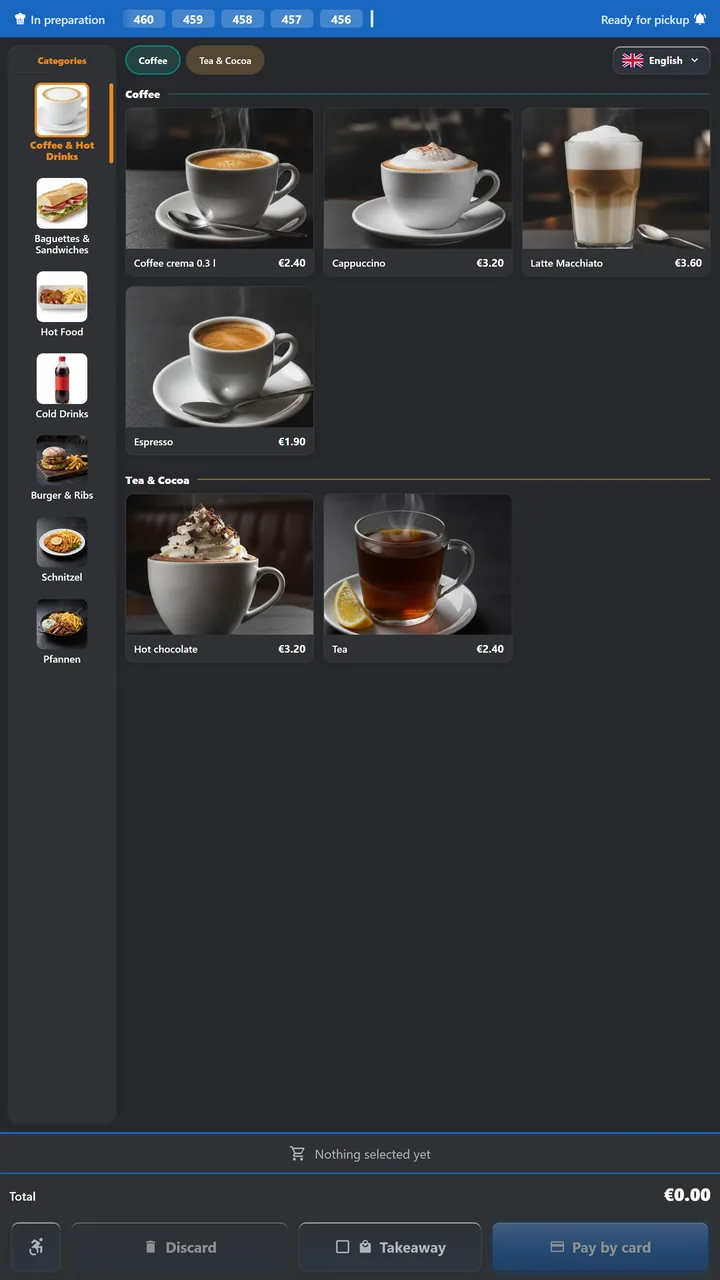
- Picture menu with categories, options, sides and sizes.
- Promotions priced on the server. Combos, tiers, happy hour, and the line that tells a guest what they saved. The kiosk only displays the finished amounts.
- Accessible on every plan, Free included. Reach mode for seated guests and a remote on the guest's own phone, described below.
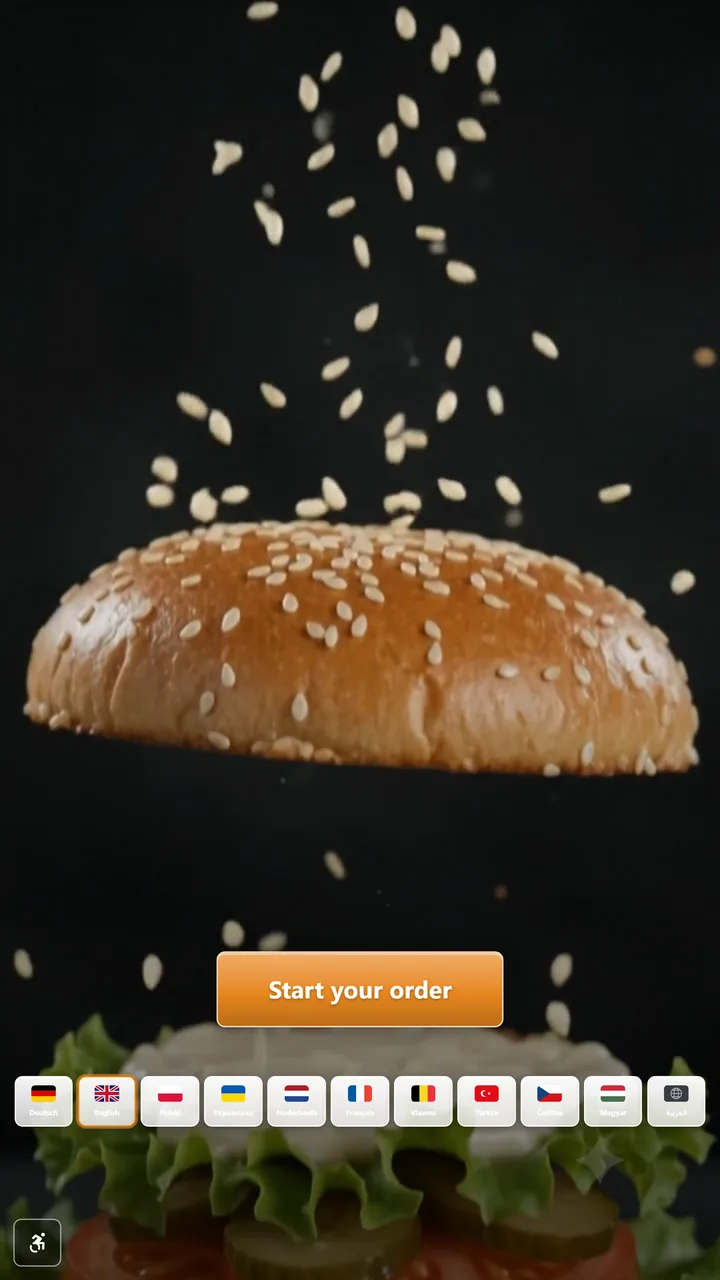
- Attract screen with your own video or images, branded per device.
- Stays logged in. If the network or the server drops, the screen keeps showing the menu and retries. It goes back to setup only when you revoke its key.
Live AI remote
The guest's own assistant as waiter and nutrition advisor
The guest sends a photo of the kiosk's code to ChatGPT or Claude and talks to it the way they would talk to a waiter. The assistant reads your menu and fills the cart on the big screen.
- One sentence per order. "Two cheeseburgers, one without onions, fries and a large cola" goes into the cart in one step. The assistant sends the request to the kiosk, which applies it directly.
- Every language and dialect. The assistant translates for the guest. For house names and local words you add aliases to a dish or an option in the cockpit, so "Gurkerl" finds the pickles.
- A nutrition advisor that knows the guest. The assistant already knows from its own chat that the guest is vegetarian or avoids lactose. It reads the allergen notes on your menu and suggests what fits. The notes are your menu data, not a guarantee; guests with a severe allergy still ask the staff.
- It asks when something is unclear. Three burgers and the guest said "burger"? The assistant asks. If a request is still ambiguous, the kiosk shows a proposal and the guest answers yes or no, by voice or with a tap.
- Visible on the kiosk. Every line the assistant adds carries a robot mark, and a band at the top says what it just did. The guest can change anything by hand at any time.
- Pays when the guest says so. The assistant reads the total from the kiosk, sums up the order and presses Pay after the guest confirms. The card still goes to the terminal. At a kiosk without a card terminal, a five-second countdown lets the guest stop the order before it goes out.
- Hands-free for every guest. In the voice mode of their chat app, a blind guest or a guest who cannot reach the screen orders without touching it, in their own language.
What the guest needs
An AI assistant on their phone. In Claude or ChatGPT the guest adds OrderStation once as a connector with the address https://order-station.com/mcp. The guide for guests shows each step. Assistants that can use a browser open the kiosk's remote page from the same code instead. There is no account, and the code works for one guest and one order: a second phone or assistant is refused, and the connection ends when the order is done.
What the restaurant needs
The AI remote is part of every kiosk on every plan, Free included. Prices, discounts and the receipt stay on your server and your register; the assistant cannot set an amount. It sees your menu and the guest's order, and the kiosk never sees the guest's conversation.
For every guest
Order from a wheelchair, or without seeing the screen
A 32-inch kiosk in portrait is built for someone standing in front of it. From a wheelchair the upper half is out of reach, and a guest who cannot read the tiles gets nothing from the pictures. Both can order on their own, on every plan including Free.
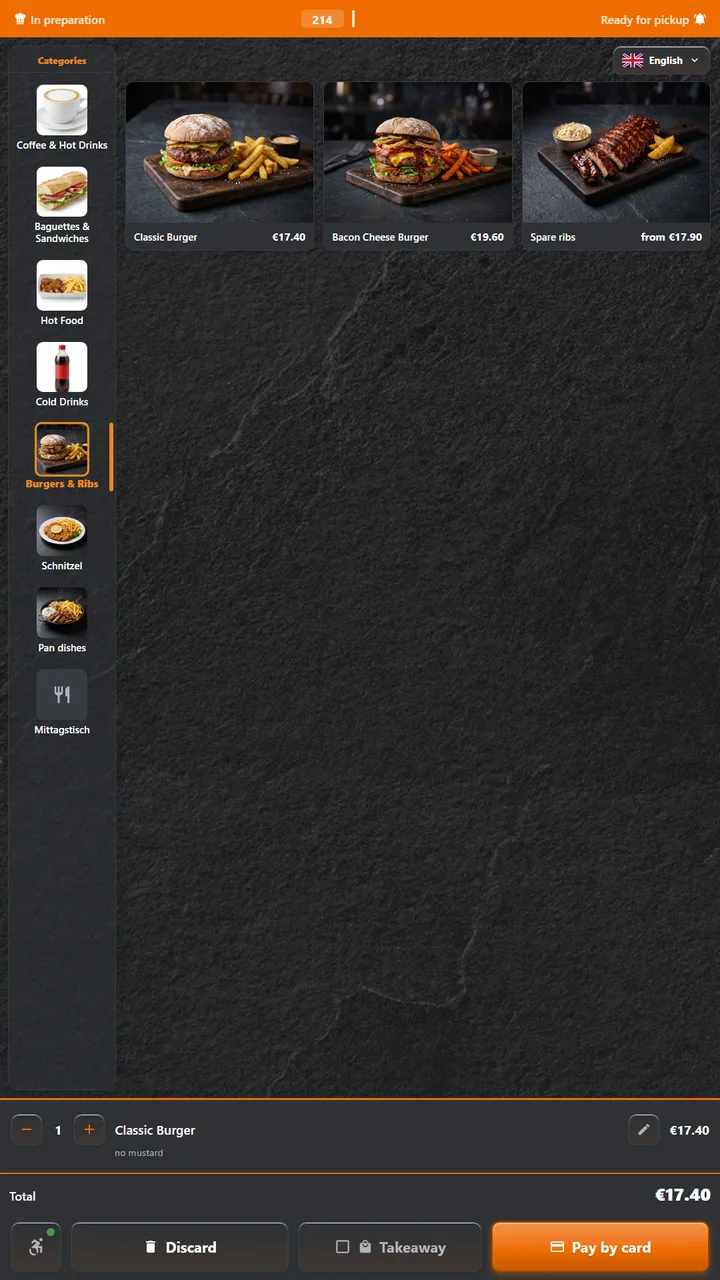
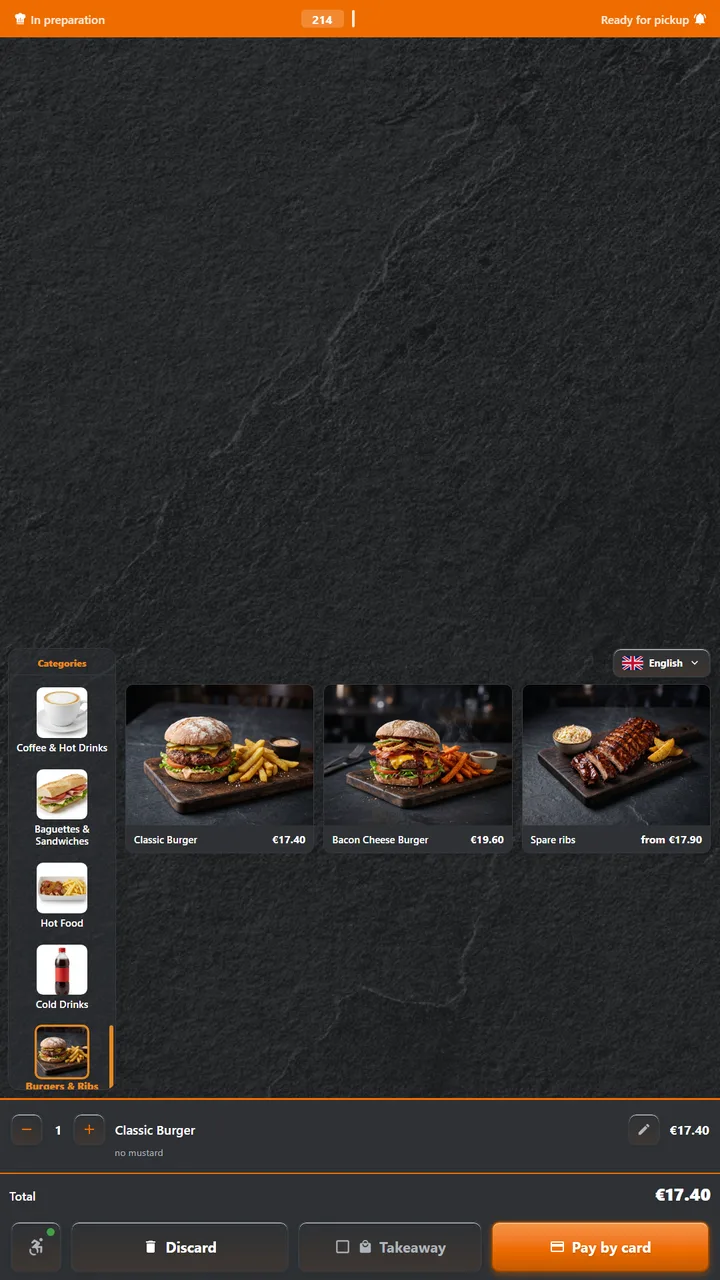
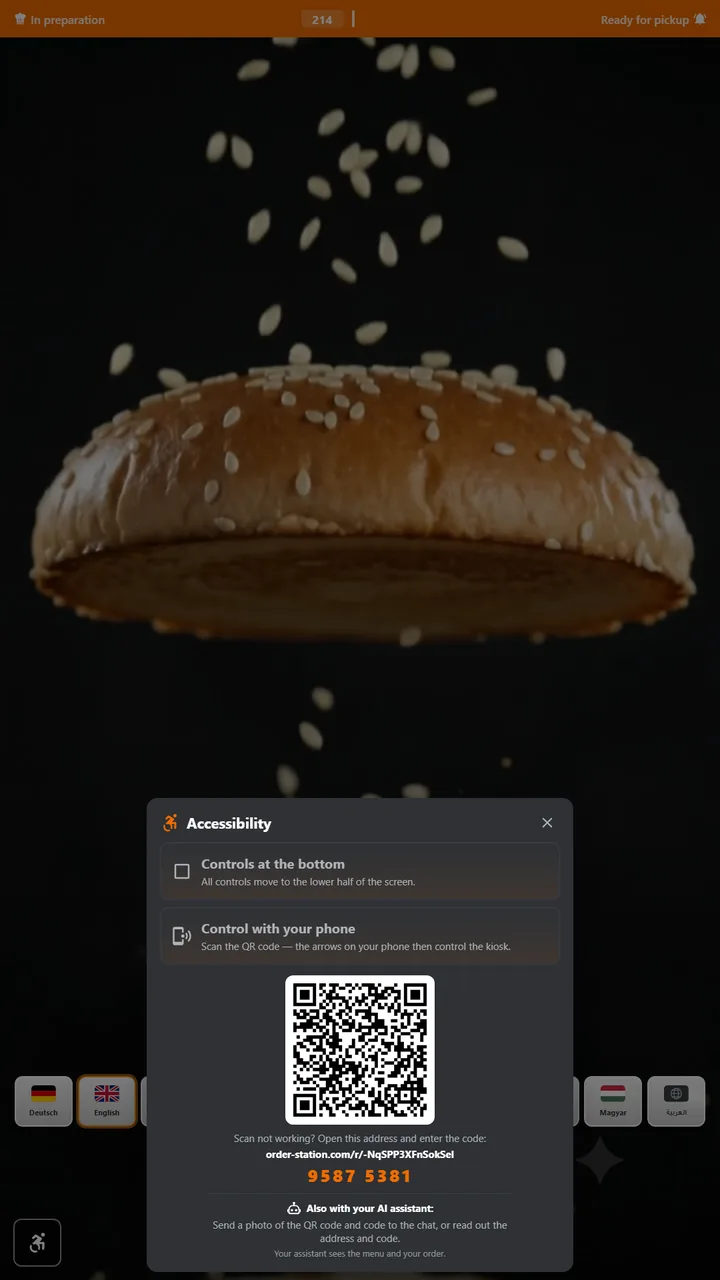
- Reach mode. A tap on the wheelchair icon moves every control into the lower half of the screen. Tiles and buttons keep their full size; the list scrolls instead.
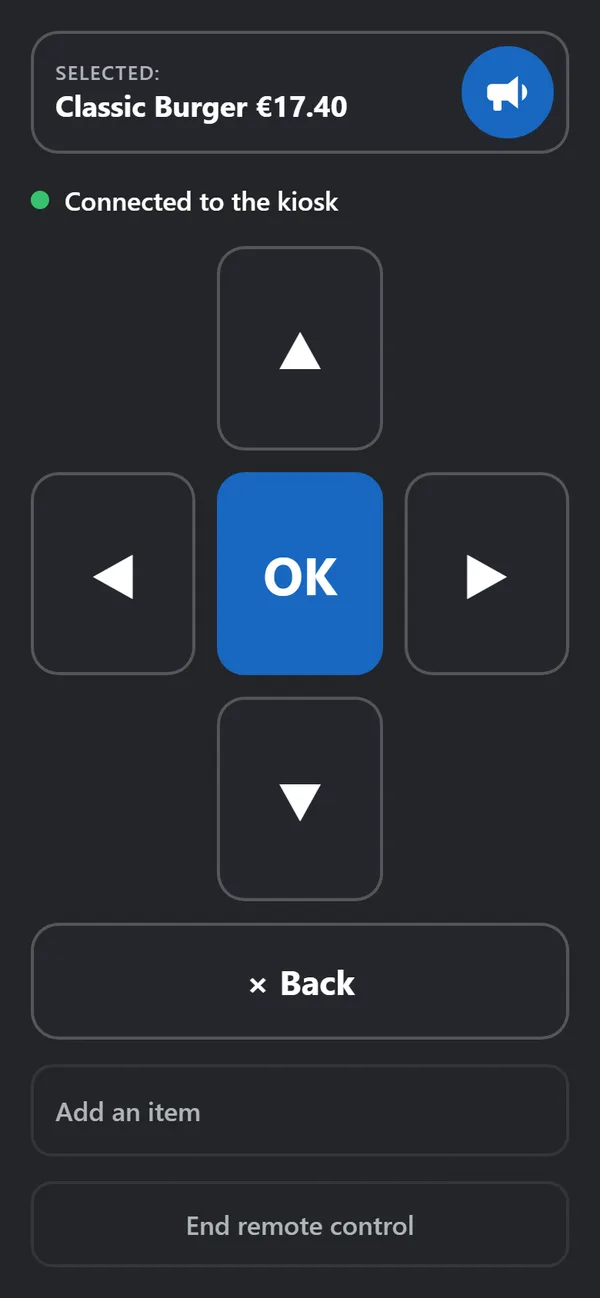
- Phone remote. Scan the QR code on the same sheet, or type the eight-digit code under it, and the guest's own phone steers the kiosk with four arrows, OK and Back. There is nothing to install and no account to create.
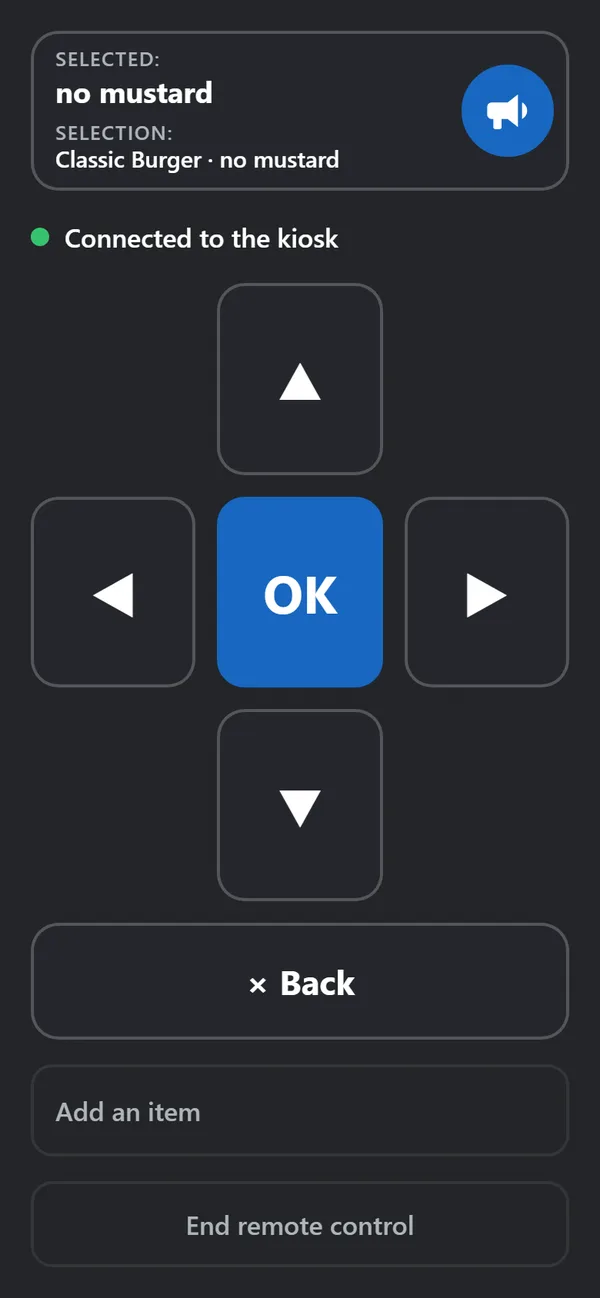
- The phone speaks. A screen reader on the phone reads out what is selected on the kiosk. Guests without one tap the speaker button and hear the name through their phone.
- Keyboard. The whole order also works with arrow keys, Enter and Escape on a connected keyboard.
- Nothing to set up. Both options are on every kiosk from the first day, and they switch off by themselves when the order is done, so the next guest finds the kiosk as usual.
The menu moves down at full size
The quick way to bring a tall screen within reach is to scale the whole picture into the lower half. That halves every touch target, and a guest with a tremor or a weak grip then has to hit targets half the size on glass that already sits at an awkward angle. OrderStation reflows the page instead: the menu, the cart and the buttons keep their size and move into the lower half, with fewer rows visible and more scrolling. The upper half shows the restaurant's background and the order ticker, which only displays. Dialogs, the options sheet and error messages open at the bottom as well, so nothing a guest has to touch ever appears above the middle of the screen.
Why the guest's own phone
Reach mode brings the screen within reach; the screen is still a stranger's touch panel. A guest who cannot hold an arm up for a minute, who cannot aim precisely, or who cannot see the tiles still has to operate it. So the second option on the sheet hands the controls to the guest's own phone. The kiosk shows a QR code and an eight-digit code. Scanning or typing it opens a web page with five large keys, four arrows and OK, and a Back button below them. Each press moves a black-and-white focus ring on the kiosk, the same ring a keyboard user sees, and OK does what a tap would do. The guest orders from their lap and the kiosk reacts in well under a second.
The phone is already set up for its owner. The screen reader, the font size, the contrast, the language and switch control all work on the remote page without the kiosk knowing anything about them. The kiosk sends one thing back, the name of what is selected, in a live region that the screen reader reads aloud, and it accepts six keys in return. Prices, the cart and the payment stay on the kiosk, the card is still held to the terminal, and a second phone that scans the same code is refused. The same page lets a companion steer from their seat while the guest reads along on the big screen.

Hearing it on the guest's phone
Not every guest with low vision runs a screen reader. For them the remote has a speaker button next to the name of the selected item. A tap reads the name aloud through the phone, in the phone's language. Menu names come as recorded voice files, produced once per menu and language, so that "latte macchiato" and "Leberkäse" sound right. For everything else, buttons and options for instance, the phone uses its own voice. Inside the options sheet the button reads the whole choice as one line, "Classic Burger, no mustard", so the guest can check it before adding. The kiosk itself stays silent, so the sound is private to the guest and the room does not hear the order.
Who this is for
- Wheelchair users and guests of short stature: reach mode, or the remote from the lap.
- Guests with low vision: a high-contrast focus ring on the kiosk, the phone's own magnification, and the speaker button.
- Blind guests: the phone's screen reader speaks what is selected on the kiosk.
- Guests with a tremor or limited fine motor control: five large keys on a familiar device instead of precise aiming on glass. Switch control and assistive touch work because the remote is an ordinary web page.
- A companion can steer from their own phone while the guest follows on the kiosk.
The legal frame
The European Accessibility Act (Directive (EU) 2019/882) applies to self-service terminals put into service since 28 June 2025, with EN 301 549 as the technical standard. Among other things it asks for operation with limited reach and limited vision, and for a way to connect a guest's own assistive technology. Reach mode and the phone remote are built for those points, and the kiosk is fully keyboard operable. The kiosk has no speech output of its own; the guest's phone speaks. The mounting height of the card terminal is decided when the kiosk is installed. This is how we read the Act; it is not legal advice.
At the table
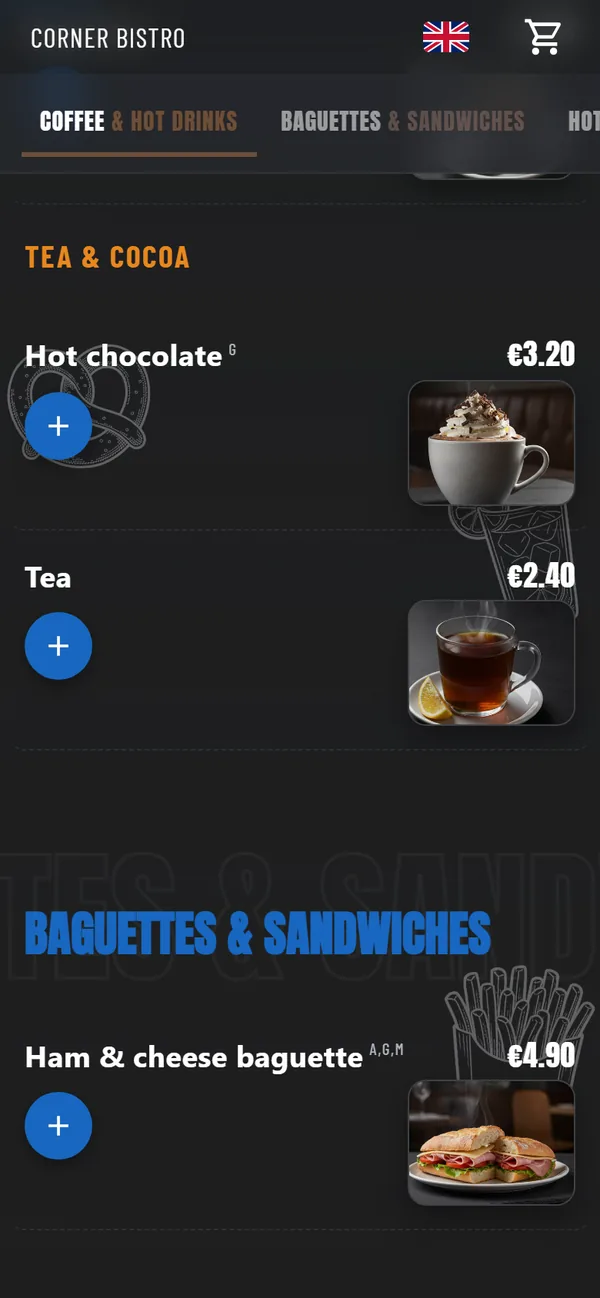
QR ordering from the guest's phone
Put a card on each table. A guest scans it, the menu opens, and the order goes straight to the kitchen with the table number already attached. Nobody has to type one.
- Shared ordering. One code per table, as many phones as sit at it. Seats stay anonymous (Guest A, Guest B), everyone sees the running order, and you can remove only your own lines.
- Pay first. For counter service with the register module: guests build the order on their phone, and it is placed the moment it is paid, at the kiosk or with staff.
- Call the waiter, keep ordering. The table stays open for another round until the bill is settled.
- Pre-order on the way. Guests choose now, in fifteen minutes, in thirty, or a set time, and the kitchen sees when they will arrive.
- Eleven languages. German, English, Polish, Ukrainian, Dutch, French, Flemish, Turkish, Czech, Hungarian, Arabic. Prices always in Latin digits so they match the printed menu.
- A switch for each. In-app payment, waiter call, cash and pre-order can be turned on or off per location. Turning one off removes the button and closes the endpoint behind it.
At the pass
Kitchen display and pickup screen
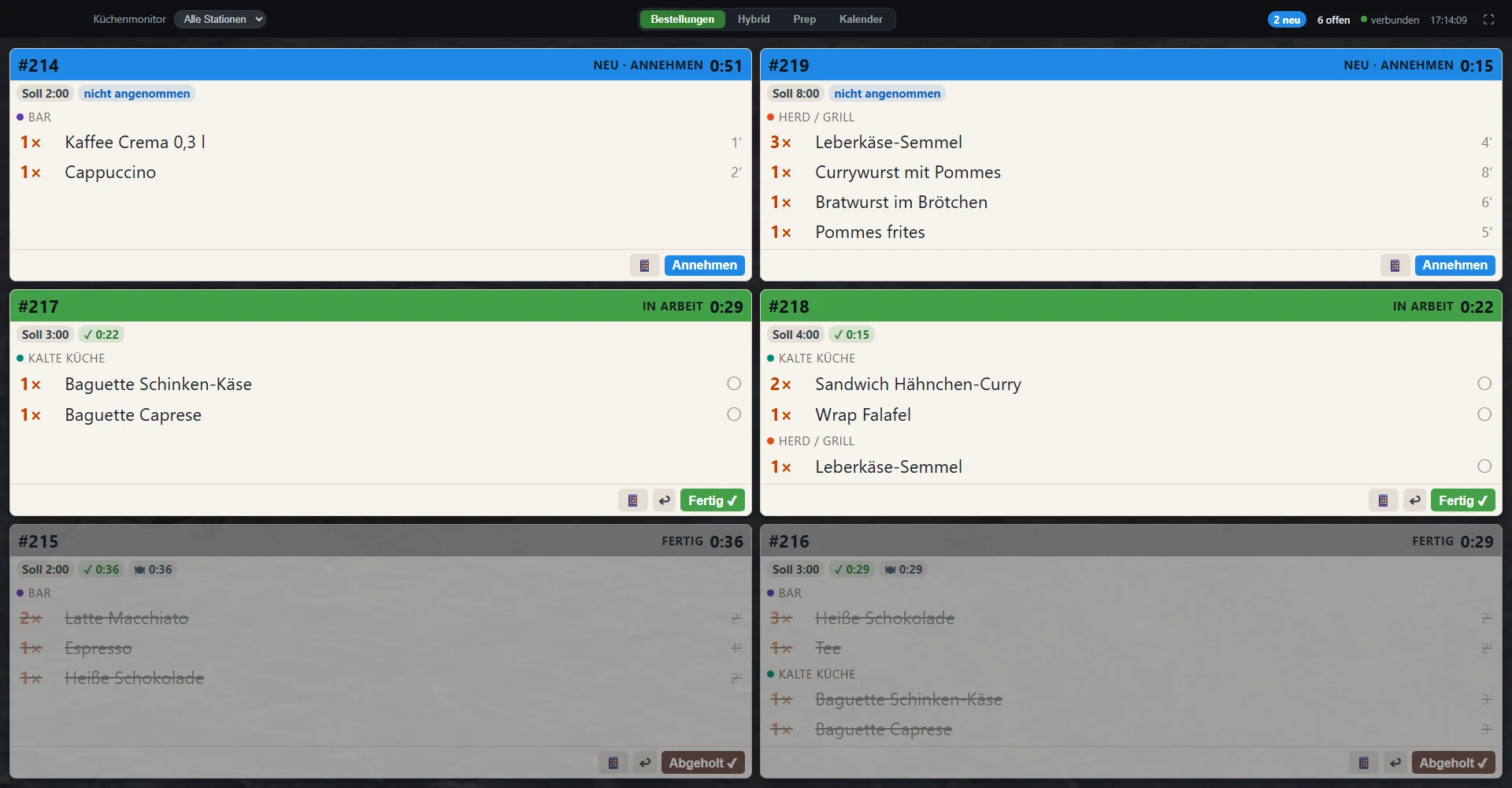
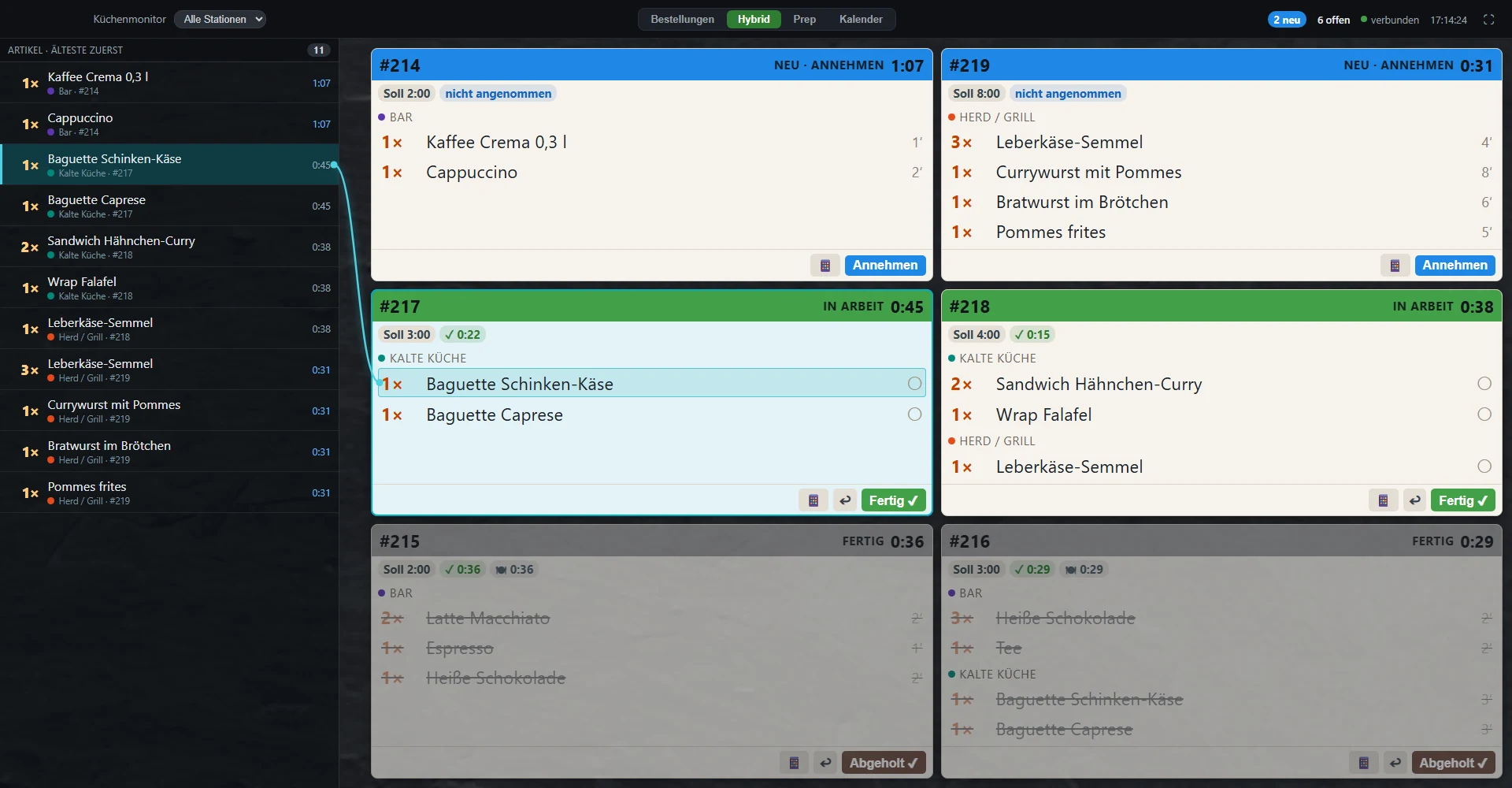
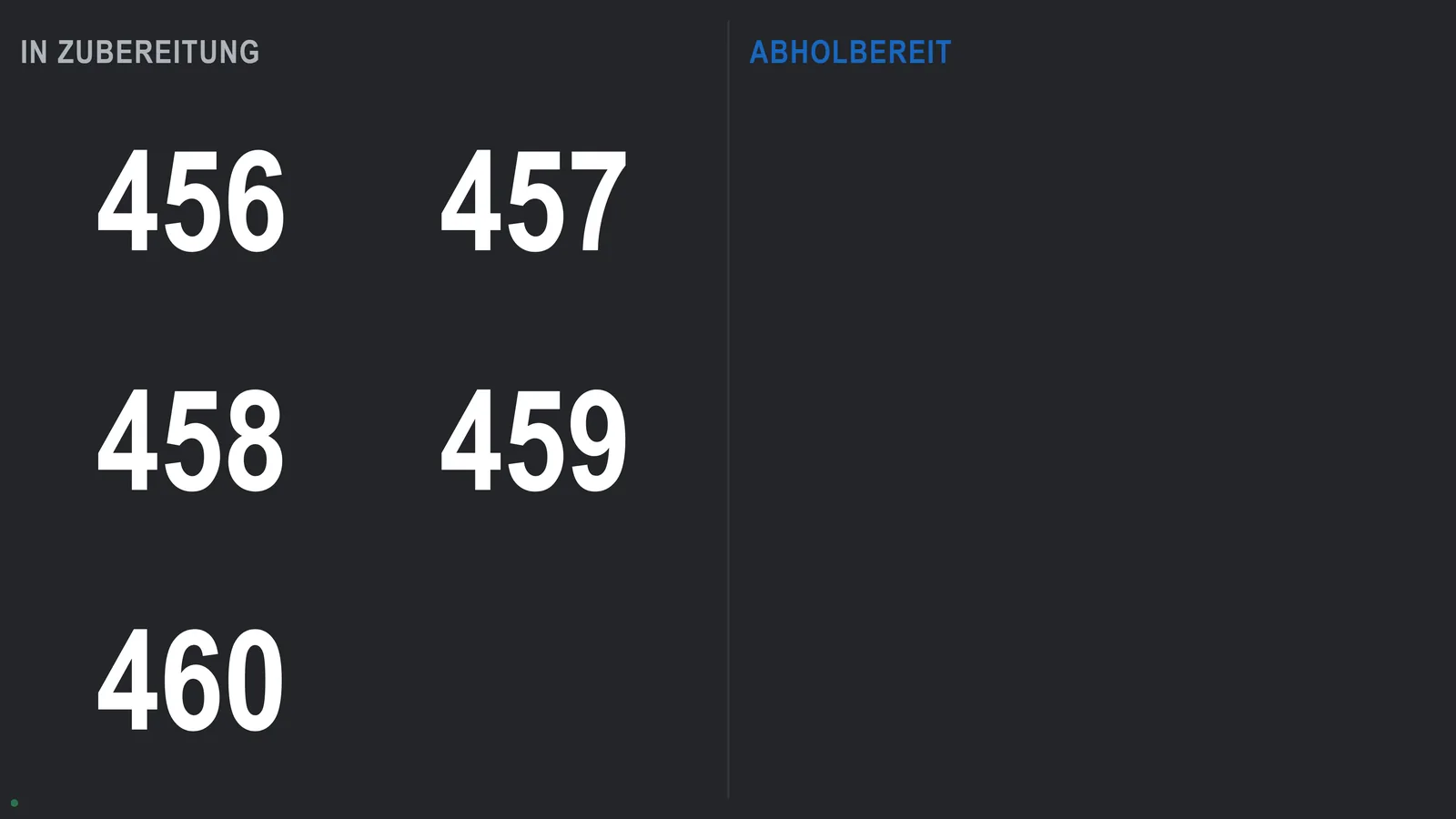
Tickets appear the moment an order is placed and sort themselves by station. The board can be read three ways, and a second screen in the dining room calls the numbers.
- Station routing by product group: cold kitchen, grill, bar. Mark items and tickets done, undo if needed.
- Unpaid pre-orders are greyed out with the arrival time and sort into place when the guest arrives.
- Three ways to read the board, switched from the header while a shift runs: one ticket per order, everything grouped by item, or both at once.
- Pickup screen with two columns, in preparation and ready, filled with order numbers.
- Set up with a PIN from your cockpit, on any monitor that has a browser.
- No screen in the kitchen? The cook opens the same board on a phone and taps print. Our Android app sends the ticket to an Epson on the local network, so the room needs only a printer and a network cable. For a place with ten orders a day, a copy by email does the job.


On the floor
Waiter app
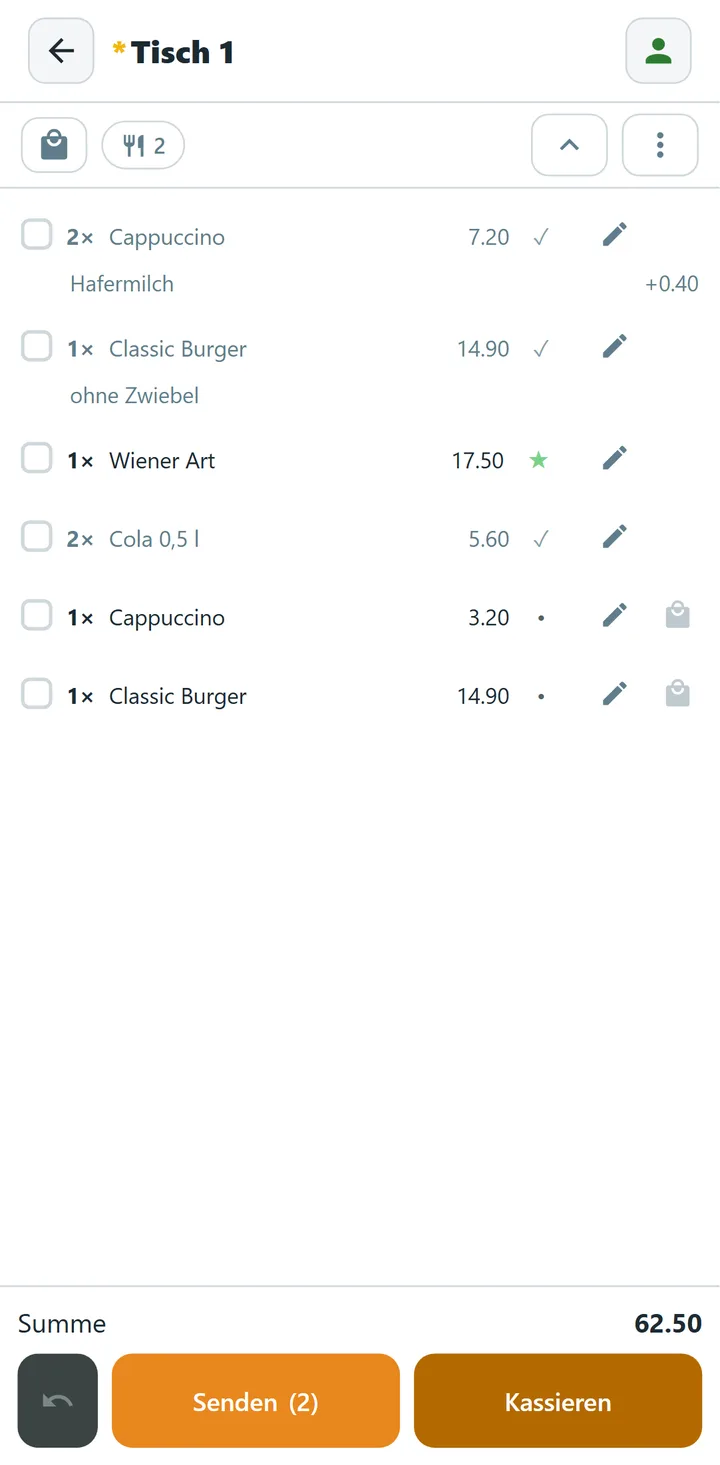
A web app your team installs on their own phones. Every action is tied to the person on shift.
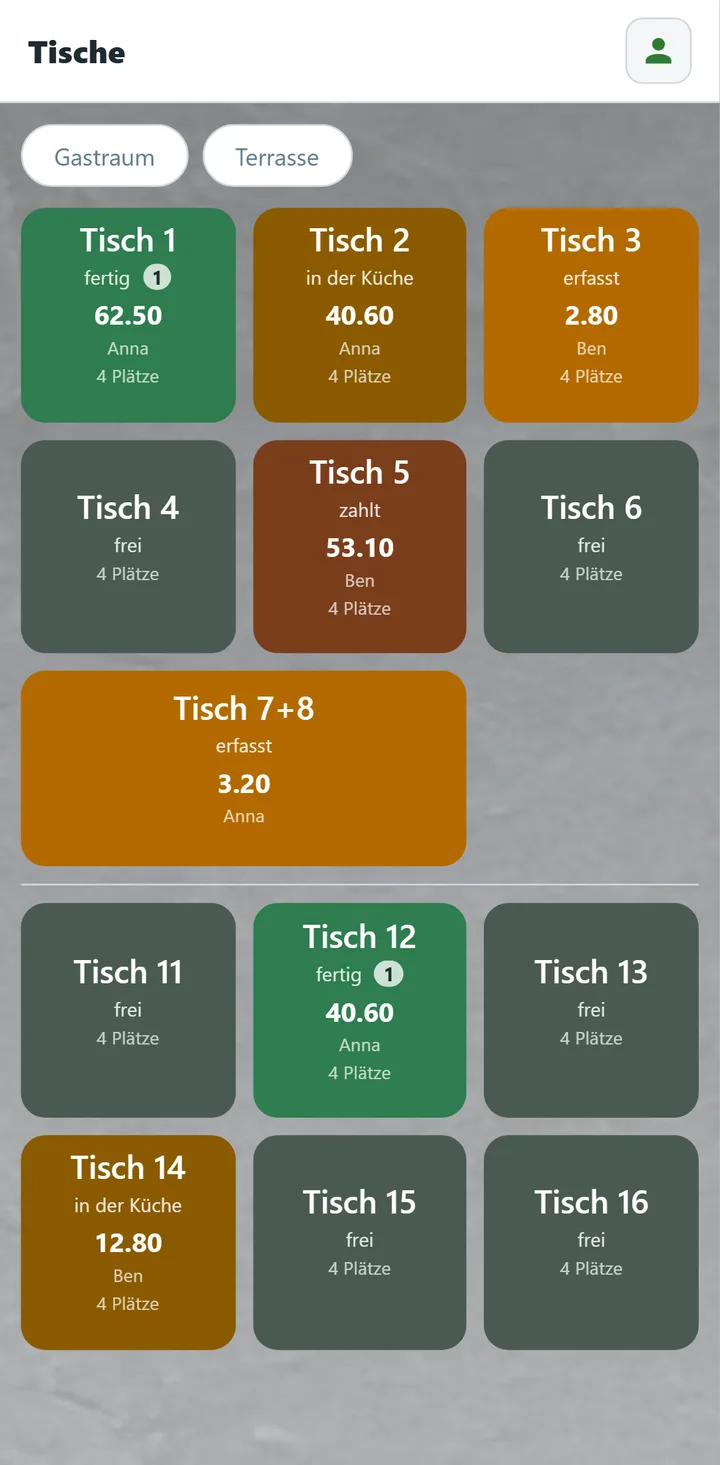
- Table overview by area, coloured by order status and live within seconds.
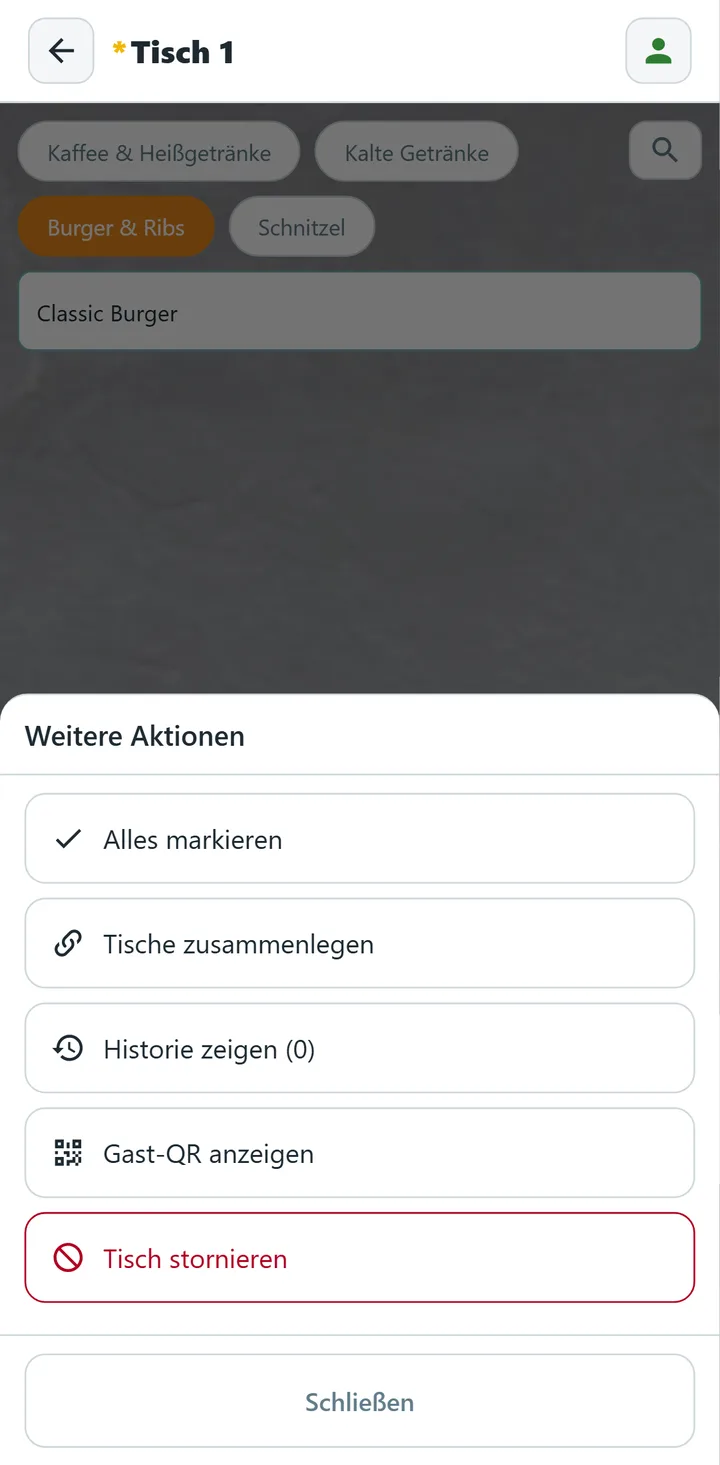
- Quick entry at the table: three-level menu, list or tiles, search across everything, modifiers, eat-in or take-away.
- Waiter calls light up the table tile. Guests keep ordering until you settle.
- Hand-over to the register. The register scans the order code, a QR code or eight digits. Split payment leaves the rest of the table open.
- PIN login per shift, a seat-by-seat breakdown of who ordered what, and table QR codes you can hand out from the app.
Outside
Hosted menu
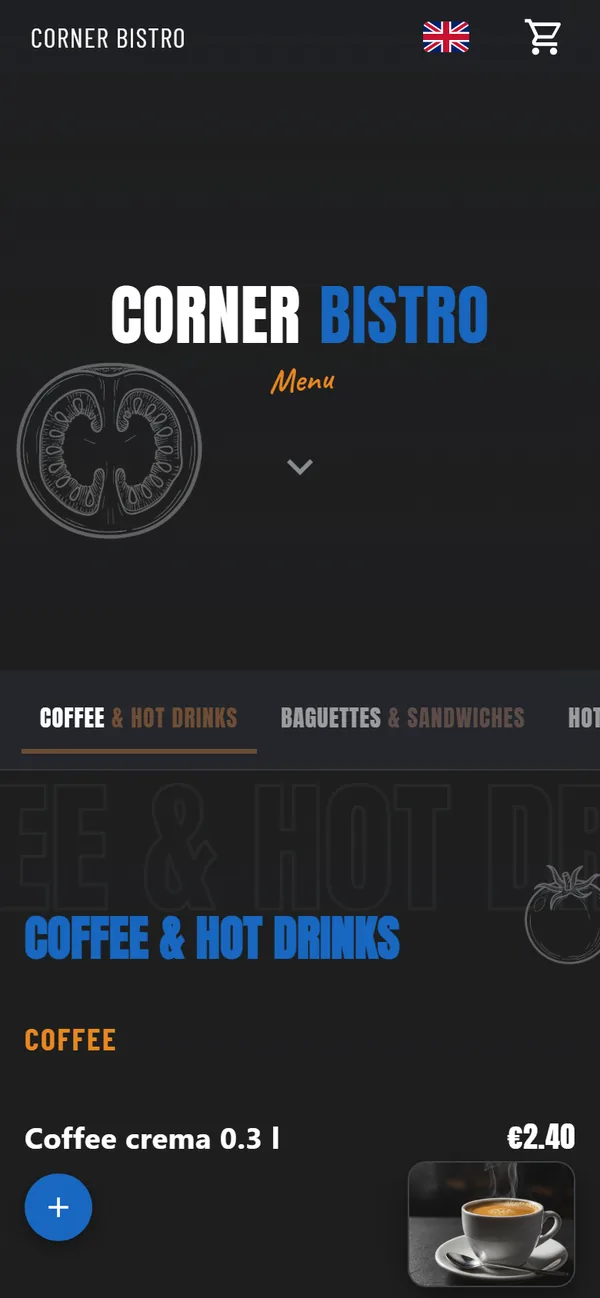
Your menu as a website on your own domain, built from the same data as the kiosk and the table. Pro plan.
- Menu designer with nine presets from pizzeria to festival, live preview, contrast warnings, publish with one click.
- Three levels of QR code. Read the menu, order from the house code, or order from a table code, where the server checks the table number.
- QR generator for print: pick the level, colours and logo, export a series as PDF.
- Menu in AR (beta). Guests point the camera at the printed menu, tap a dish, and it lands in the cart.
- Digital receipts guests can find again later, with a code and no PIN. They come from the register, so they need the register module.
Taking payment
Add a register when you need one
OrderStation takes orders. Payment is the job of a register, and in most of Europe a receipt has to come from one the tax authorities recognise. An ordering system cannot issue it on its own.
When you want to take payment, add our register as a separate module, at €49.90 per terminal and month. It is the register retail butlers already runs in retail chains, and it is fiscally compliant in Germany, Austria and Switzerland. Through the fiscal middleware it uses, it also works in Czechia, Croatia, Slovenia, Italy and France. Guests pay at the kiosk, at the table or with a waiter, the order is booked on the register, and the receipt comes back to them.
Already running a register you like? Keep it. Enterprise connects the waiter app's order code to your own system and your own fiscal provider.
Try it with your own menu
Free for two locations and twenty items. Request your account, or see it live on a call first.
Free for up to 2 locations and 20 menu items. No card, no time limit. We set it up with you.